
UAT and Credentials
Overview
Before releasing your Miniapp to production, all development and testing should be done in the UAT (User Acceptance Testing) environment. This ensures your Miniapp is thoroughly tested before real users interact with it.
Why Develop in UAT First?
The UAT environment provides a safe sandbox for development with several key benefits:
| Feature | Description |
|---|---|
| Testing Accounts | Pre-configured test user accounts for simulating real user interactions |
| Testing Money | Virtual currency for testing payment flows without real financial transactions |
| Isolated Environment | Separate from production, so testing won't affect live users or data |
| Debug-Friendly | Enhanced logging and debugging capabilities for development |
Downloading Super Qi UAT
To develop and test your Miniapp, you'll need to install the Super Qi UAT application on your device. The UAT version is separate from the production Super Qi app and connects to the testing environment.
Android
Follow these steps to get Super Qi UAT on your Android device:
Step 1: Request Access
Reach out to the Miniapps development team with an organization email (or the sponsor organization email) to request Firebase access:
- Send to: ali.rabeaa@qi.iq
- CC to: hani.salih@qi.iq
Provide the following information:
- Your email address used on the device
Step 2: Check Your Email
Once your request is approved, you'll be added to the Firebase App Distribution list. You will receive an email with instructions to download the latest Super Qi UAT Android version.
Step 3: Install the App
Follow the instructions in the email to download and install the Super Qi UAT app on your Android device.
iOS
Follow these steps to get Super Qi UAT on your iOS device:
Step 1: Contact the Miniapps Team
Reach out to the Miniapps development team with an organization email (or the sponsor organization email) to request TestFlight access:
- Send to: ali.rabeaa@qi.iq
- CC to: hani.salih@qi.iq
Provide the following information:
- Your Apple ID organization email address (test@organization.com)
- (Optional) Sponsor Email address
- Your company/organization
Step 2: Accept TestFlight Invitation
Once added, you'll receive an email invitation from TestFlight. Accept the invitation to gain access to the Super Qi UAT iOS version.
Step 3: Download via TestFlight
Open the TestFlight app on your iOS device and download the latest Super Qi UAT version.
Developer Menu
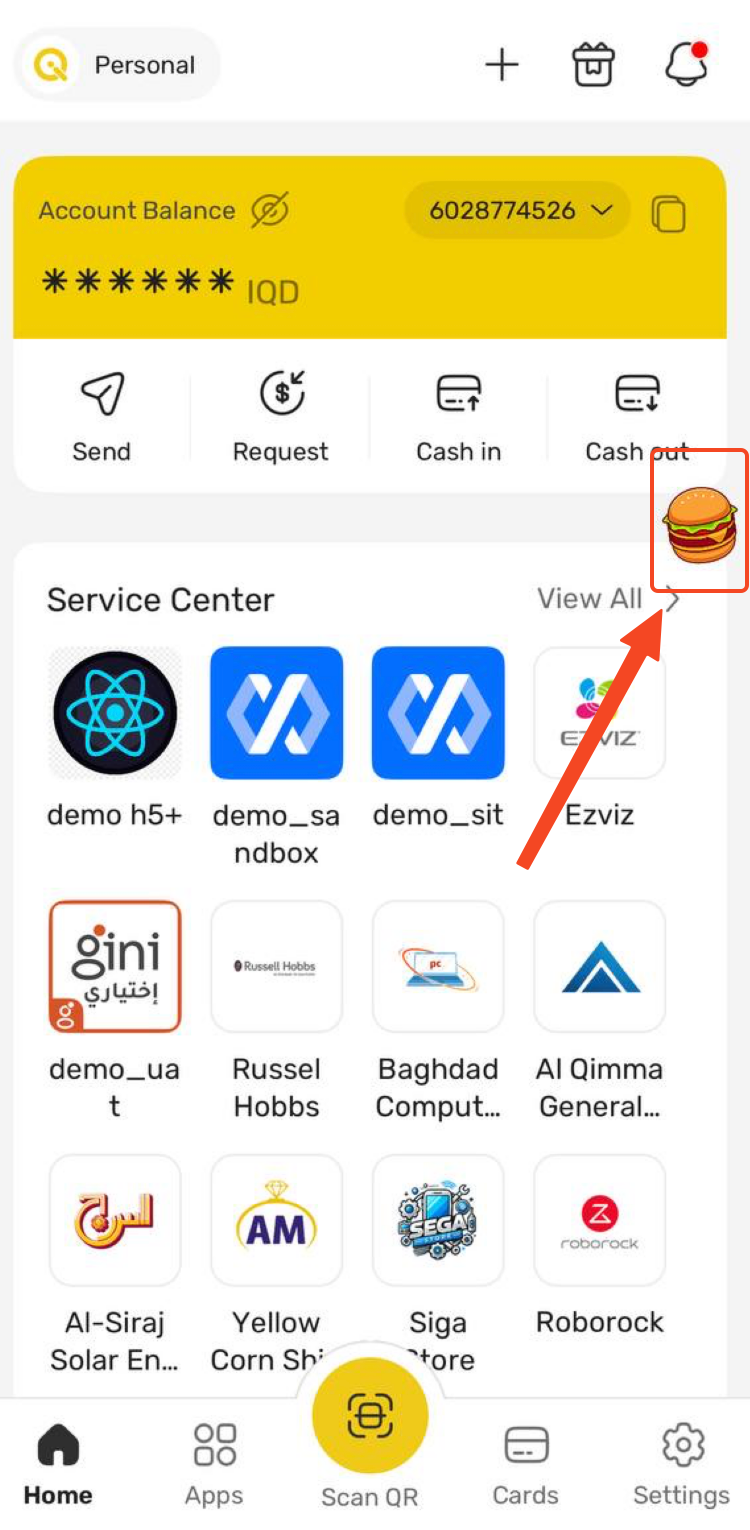
Once you have Super Qi UAT installed, you'll notice a floating burger icon on the screen. This icon provides access to the Developer Menu, which contains essential tools and settings for development.
Environment
The Environment feature allows you to switch between different server environments within the app.
Follow these steps to configure your environment:
- Tap the floating burger icon to open the Developer Menu
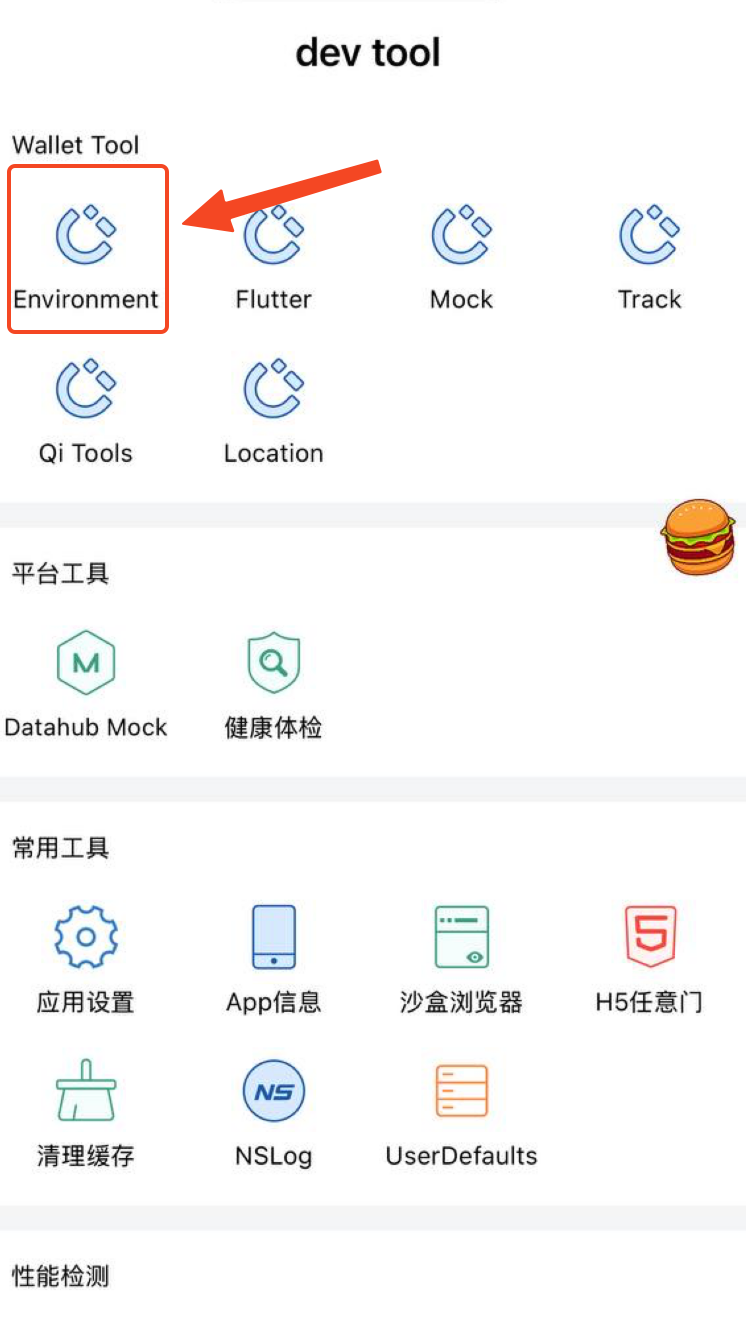
- Select Environment from the menu options
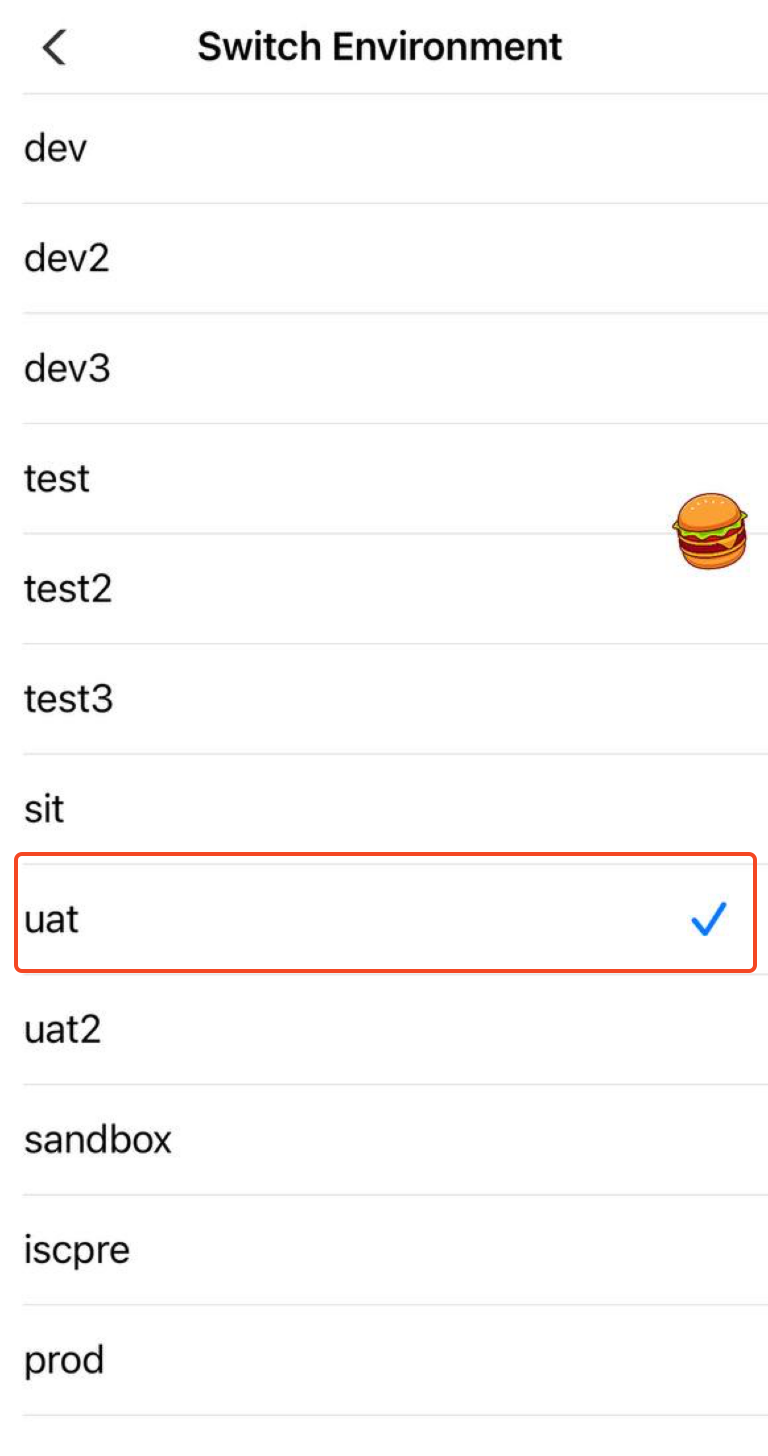
- Choose UAT from the available environments
- The app will reload with the UAT environment active
Qi Tools
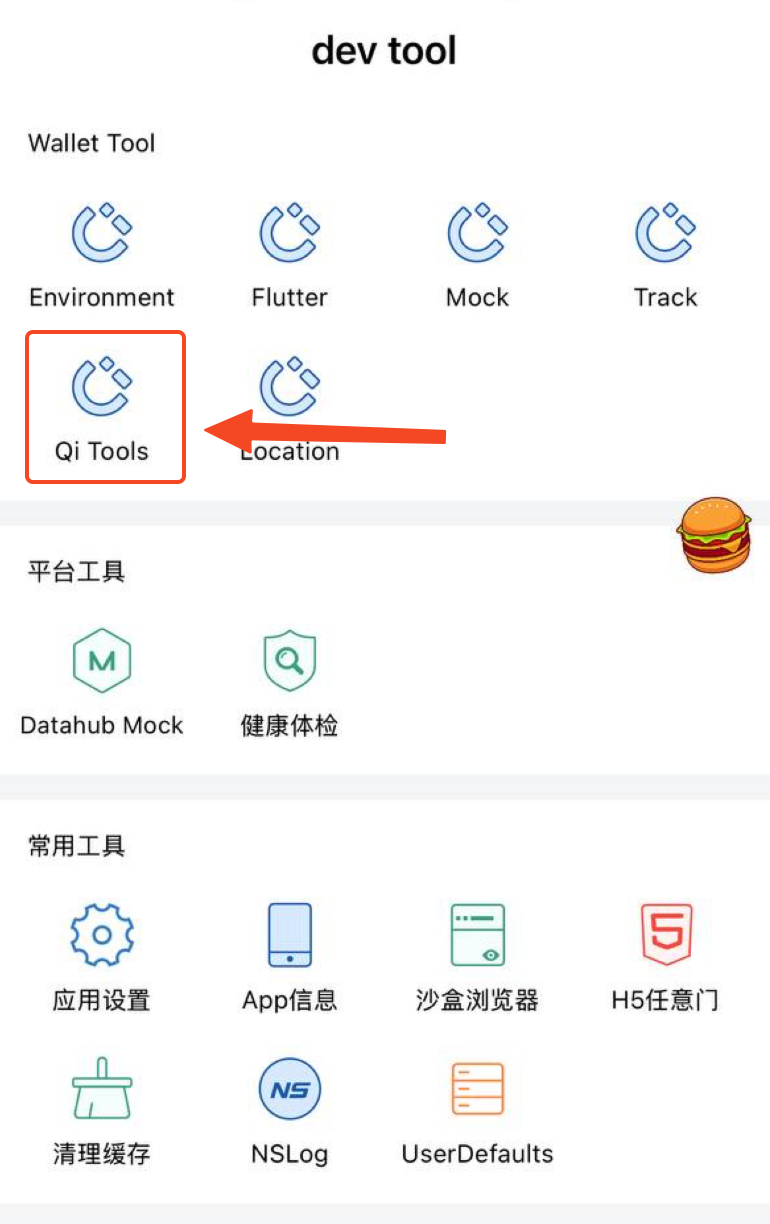
The Qi Tools section provides various developer utilities to help with testing and debugging your Miniapp.
Available tools include:
- Disable Screenshot Protection - Allows you to take screenshots within the app for documentation or debugging purposes
- Additional debugging and testing utilities
Testing Credentials
For development in the UAT environment, you'll need testing merchant credentials. Follow the steps below to request your UAT credentials.
How to Request UAT Credentials
To obtain your UAT credentials, send an email request to the Miniapps team with the following details:
Email Details:
- To: ali.rabeaa@qi.iq
- CC: mouamle.hameed@qi.iq hani.salih@qi.iq
- Subject: UAT Credentials Request - Your Miniapp Name
Required Information
Your email should include:
- Miniapp Name - The name of your Miniapp
- Organization Details - Your company/organization name
- Contact Information - Primary contact person and phone number
- Additional Scopes (if needed) - If you require access to additional scopes beyond the standard APIs, please:
- Specify which scopes you need
- Attach any approval documents or authorization letters
Email Template
Copy and use this template for your credentials request:
Subject: UAT Credentials Request - [Your Miniapp Name]

Dear Miniapps Team,

I am writing to request UAT credentials for our Miniapp development.

Miniapp Name: [Your Miniapp Name]
Organization: [Your Organization Name]
Contact Person: [Your Name]
Phone Number: [Your Phone Number]
Email: [Your Email Address]

Additional Scopes (if applicable):
[List any additional scopes you need, or write "None"]

[If requesting additional scopes, mention attached documents here]

Thank you for your assistance.

Best regards,
[Your Name]
[Your Title]
[Your Organization]
What Happens Next
After submitting your request:
- The Miniapps team will review your request
- If additional scopes are requested, they will verify the attached approvals
- Your UAT credentials will be generated and shared via the established communication channel
- You will receive:
- Client ID
- Merchant ID
- Gateway URL
- Private Key (the matching public key is published in the Signature Validation guide)
- Super Qi UAT Test User
Ready to continue? The next sections will guide you through creating your first Miniapp and using the testing credentials for UAT development.